Team
Manage team members and their roles within your organization
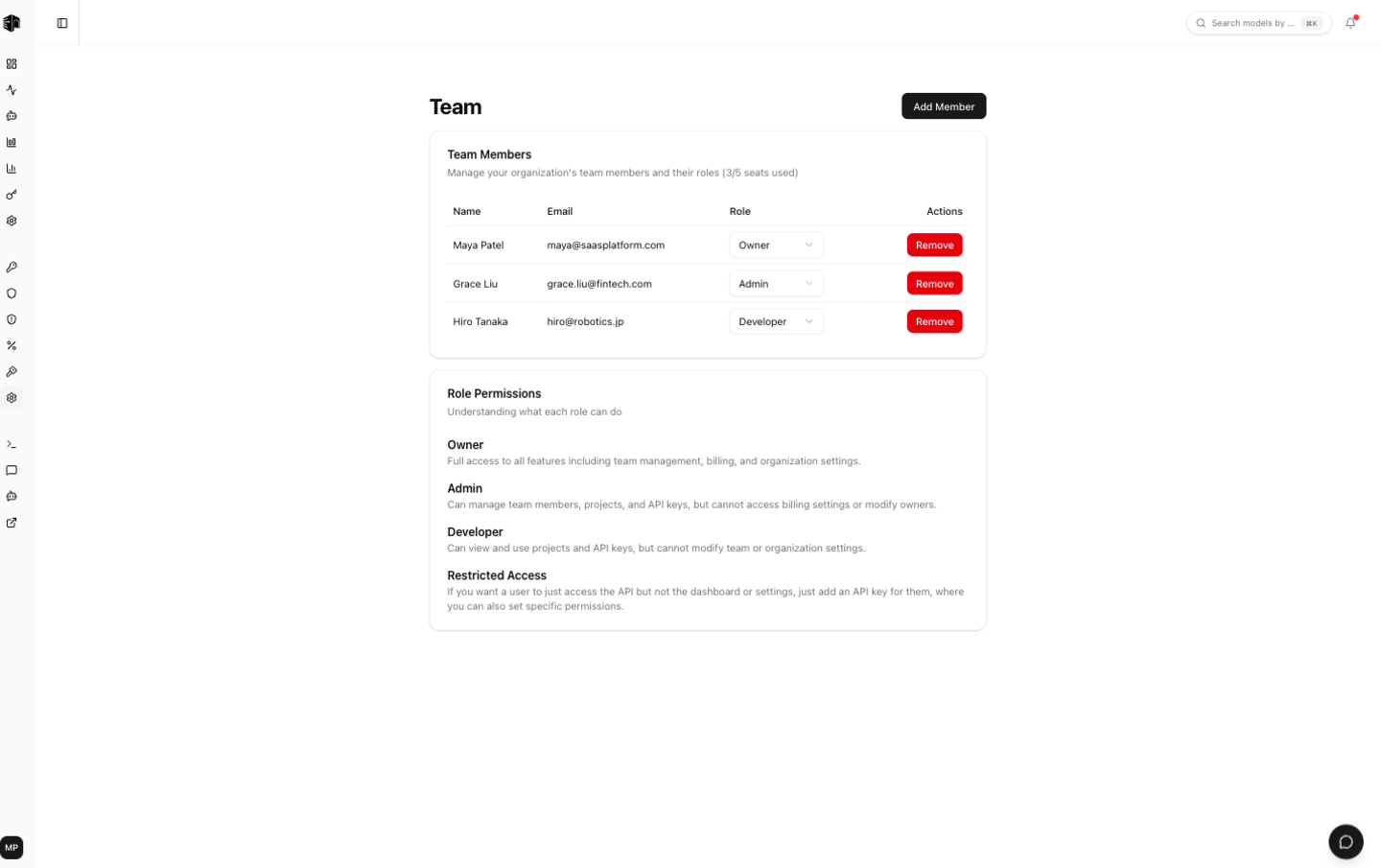
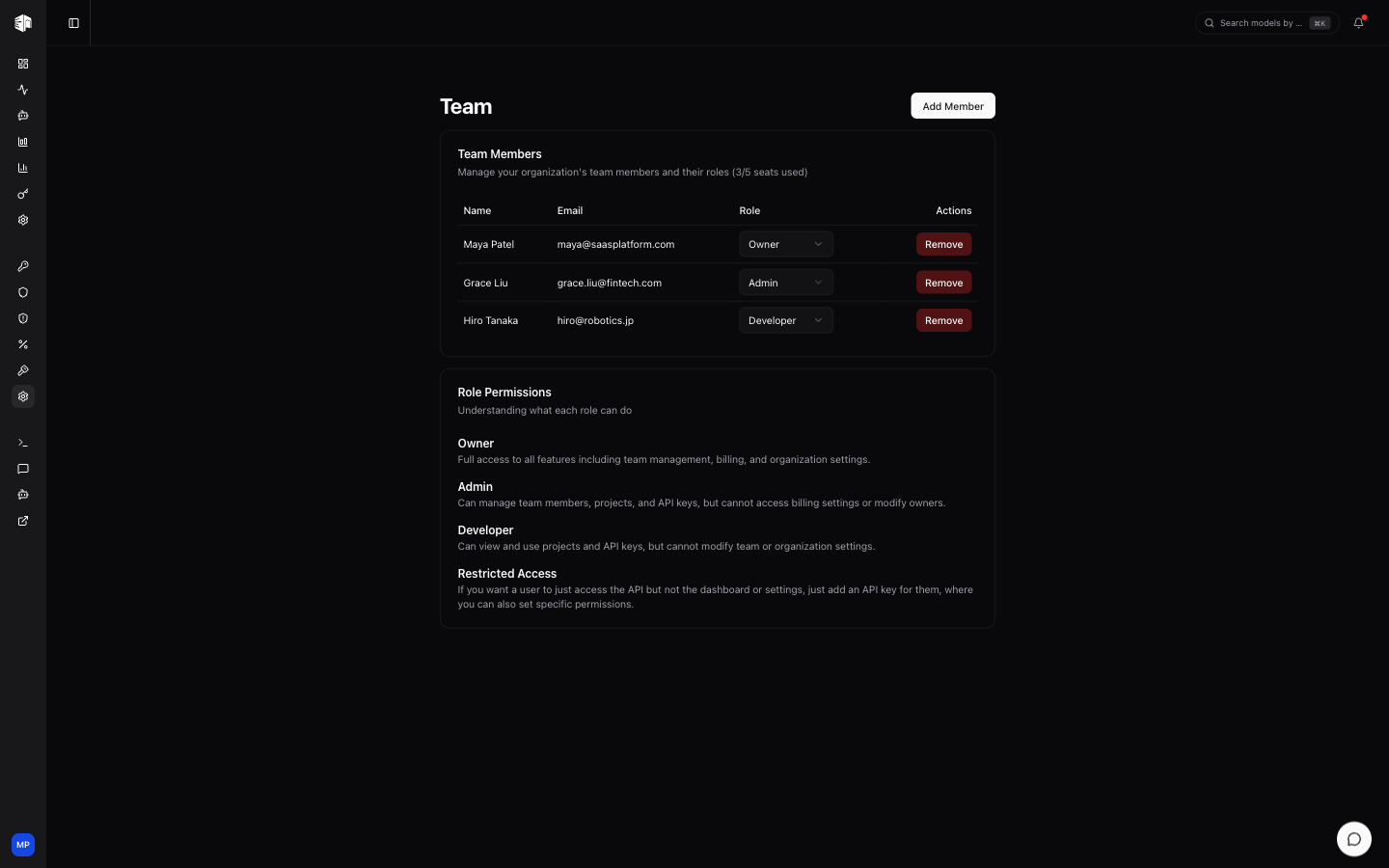
The Team page lets you invite team members, assign roles, and control access to your organization.
Adding Members
Click Add Member to invite someone by email. You'll need to:
- Enter their email address
- Select a role (Developer, Admin, or Owner)
Your plan includes up to 5 team seats. The current count is displayed, and the Add button is disabled when all seats are used. Contact sales for additional seats.
Team Members List
Each member shows:
| Field | Description |
|---|---|
| Name | The member's display name |
| Their email address | |
| Role | Their current role (can be changed via dropdown) |
Actions
Each member row has an actions menu:
- Details — Open the member's detail page with their budget and usage
- Manage access — Change the member's role (owners and admins only)
- Manage budget — Set per-member spending limits (owners and admins only)
- Manage IAM rules — Restrict which models, providers, pricing tiers, or IP ranges the member can use (owners and admins only)
- Remove — Remove a member from the organization (requires confirmation)
Member IAM Rules
Owners and admins can set IAM rules on a member — the same allow/deny rules for models, providers, pricing, and IP ranges that exist on individual API keys, applied organization-wide to that member. As with roles and budgets, admins cannot modify an owner's rules.
Member-level rules are a ceiling: they apply to every API key the member creates, and the member's own key rules can only narrow access further, never expand it. For example, if you restrict a member to a single approved provider, they can still create a key limited to one of that provider's models, but no key of theirs can reach any other provider.
Members can view (but not edit) their own rules — the per-key IAM page shows a notice when organization-level restrictions apply, and denied requests state that the restriction was set by the org admin.
For the full rule semantics, see Member-Level IAM Rules. Rules can also be managed programmatically via the master key API.
Role Permissions
| Role | Permissions |
|---|---|
| Owner | Full access to all settings, billing, team management, and all projects |
| Admin | Can manage team members, projects, and API keys, but cannot access billing or delete the organization |
| Developer | View and use resources only. Cannot modify settings or manage team |
Developers can also be given restricted access at the API key level, limiting which keys they can view and use.
How is this guide?
Last updated on